Teacher Wearable Animations
Although K–2 students may not be ready to code micro:bits on their own, you can use micro:bit animations as a fun, engaging way to showcase what the device can do and build excitement for future computer science learning.
Materials
-
Help putting a hex file onto your micro:bit
https://support.microbit.org/support/solutions/articles/19000065686-how-do-i-import-my-editor-scripts-and-hex-files- -
FILE DOWNLOAD - micro:bit Beating Heart
https://drive.google.com/file/d/126qiMJ7oTY_JcIyzkMTYHfELj2ZjqIU3/view?usp=drive_linkThis is a file that needs to be downloaded and uploaded to your micro:bit.
-
FILE DOWNLOAD - micro:bit Animated Animals file download
https://drive.google.com/file/d/1q8Bu6S4w-GPO1AvnTmYcxynoShlcX9NS/view?usp=drive_linkThis is a file that needs to be downloaded and uploaded to your micro:bit.
-
FILE DOWNLOAD - micro:bit Smiley Buttons file download
https://drive.google.com/file/d/1f5Izgn4KwXpMXRA4lktcLdKiElIgdDFg/view?usp=drive_linkThis is a file that needs to be downloaded and uploaded to your micro:bit.
Lesson Plan
Use one of the following animation files / lessons to upload an animation to your micro:bit and wear it around the classroom.
- Flashing Heart: micro:bit Beating Heart Lesson Plan
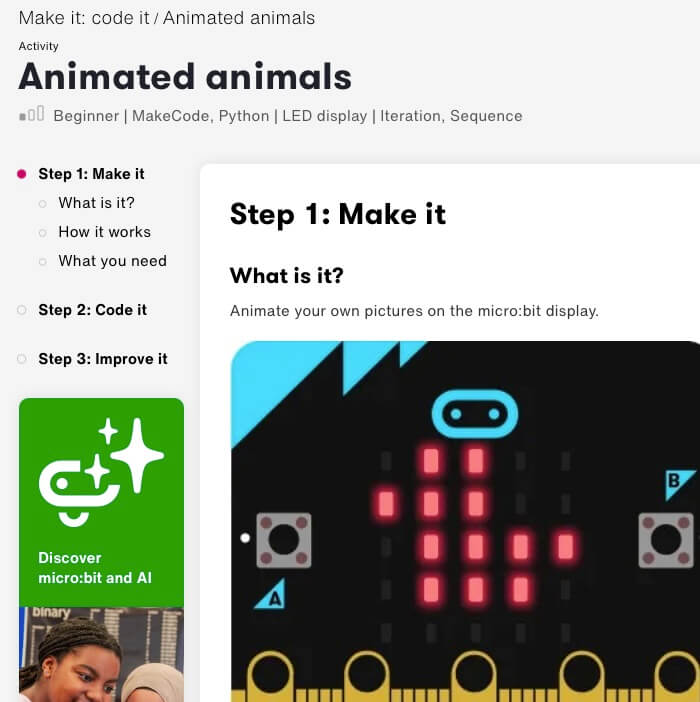
- Animated Animals: micro:bit Animated Animals Lesson Plan
- Smiley Buttons: micro:bit Smiley Buttons
Tips for Running Activity:
- Display the micro:bit in a visible place, like clipped to your shirt, a lanyard, classroom sign, or a BBC micro:bit wearable bracelet.
- Change the animation every so often to keep students guessing and engaged.
- Use it as a classroom attention-getter, transition tool, or conversation starter.’
Other Ideas for using the micro:bit in your classroom:
- Wear or display a micro:bit with pre-programmed animations during special times of the year (Valentine’s Day, 100th Day, Earth Day, etc.).
- Use either a physical micro:bit or the digital simulator on your interactive display to show off your animations.
- Let students observe animations like a beating heart, animals, moving shapes, letters, or simple messages (“HI!” or “WOW!”).
- Encourage students to describe what they see and guess what made the animation happen.
Use one of the following animation files / lessons to upload an animation to your micro:bit and wear it around the classroom.
- Flashing Heart: micro:bit Beating Heart Lesson Plan
- Animated Animals: micro:bit Animated Animals Lesson Plan
- Smiley Buttons: micro:bit Smiley Buttons
Tips for Running Activity:
- Display the micro:bit in a visible place, like clipped to your shirt, a lanyard, classroom sign, or a BBC micro:bit wearable bracelet.
- Change the animation every so often to keep students guessing and engaged.
- Use it as a classroom attention-getter, transition tool, or conversation starter.’
Other Ideas for using the micro:bit in your classroom:
- Wear or display a micro:bit with pre-programmed animations during special times of the year (Valentine’s Day, 100th Day, Earth Day, etc.).
- Use either a physical micro:bit or the digital simulator on your interactive display to show off your animations.
- Let students observe animations like a beating heart, animals, moving shapes, letters, or simple messages (“HI!” or “WOW!”).
- Encourage students to describe what they see and guess what made the animation happen.
Use one of the following animation files / lessons to upload an animation to your micro:bit and wear it around the classroom.
- Flashing Heart: micro:bit Beating Heart Lesson Plan
- Animated Animals: micro:bit Animated Animals Lesson Plan
- Smiley Buttons: micro:bit Smiley Buttons
Tips for Running Activity:
- Display the micro:bit in a visible place, like clipped to your shirt, a lanyard, classroom sign, or a BBC micro:bit wearable bracelet.
- Change the animation every so often to keep students guessing and engaged.
- Use it as a classroom attention-getter, transition tool, or conversation starter.’
Other Ideas for using the micro:bit in your classroom:
- Wear or display a micro:bit with pre-programmed animations during special times of the year (Valentine’s Day, 100th Day, Earth Day, etc.).
- Use either a physical micro:bit or the digital simulator on your interactive display to show off your animations.
- Let students observe animations like a beating heart, animals, moving shapes, letters, or simple messages (“HI!” or “WOW!”).
- Encourage students to describe what they see and guess what made the animation happen.