Scratch Platform Code Block Scavenger Hunt
The “Scratch Platform Code Block Scavenger Hunt” introduces students to Scratch coding platform by challenging them to explore and locate specific code blocks, menus, and submenus. Students will search for and identify blocks from categories like “Motion,” “Looks,” and “Events,” learning how to navigate the toolbox and understand the purpose of each section. This interactive activity builds familiarity with the coding environment while sparking curiosity about how the blocks can be used in programming.
This activity is intended to be the first look or review of the Scratch platform. The teacher will begin with a tour of the features of the platform and then allow the students independent exploration as they complete the Scavenger Hunt.
Materials
-
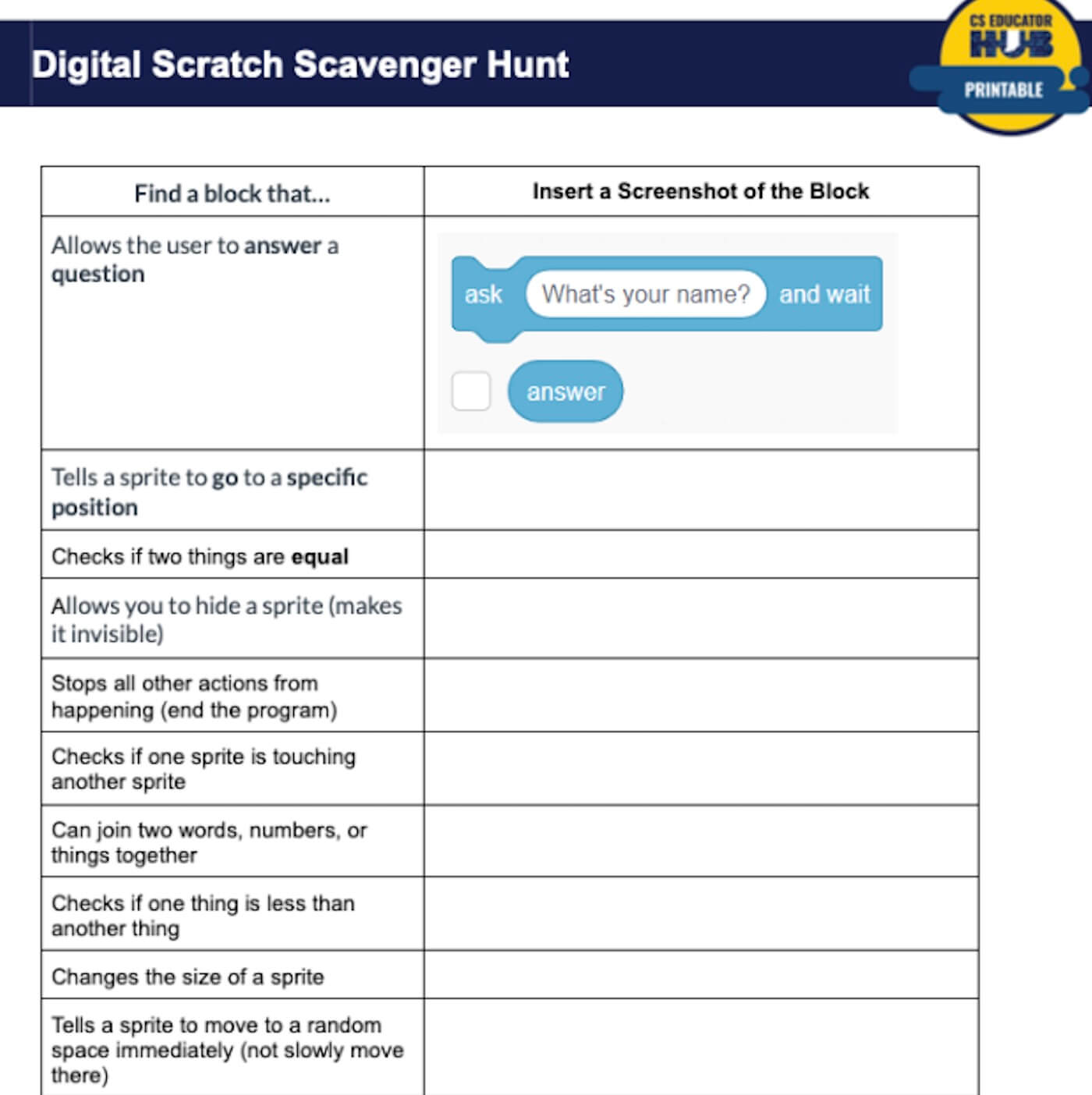
Scratch Digital Google Doc Scavenger Hunt by Annika Miller
https://docs.google.com/document/d/1Wa5ZbDBGg_GrjQbznALJBODv2oi6WNg0P-LNHSlIaxQ/edit?usp=sharing
Lesson Plan
Introducing students to Scratch
- Begin with a brief discussion: “Has anyone used Scratch before? What do you know about it?”
- Introduce Scratch as a block-based coding platform designed for beginners.
- Display and discuss the scratch interface using: Scratch Platform
- After reviewing the labelled slide, transition students to opening a web browser and go to https://scratch.mit.edu.
- Display the Scratch interface on the board and give a guided tour to students, highlighting:
- Stage & Sprites Panel (where animations and interactions take place)
- Code Block Categories (Motion, Looks, Events, etc.)
- Scripting Area (where coding happens)
- Toolbar & Menu Options
- Explain the purpose of the scavenger hunt: to explore Scratch and locate key coding blocks. Encourage students to click around and explore the site as they look for blocks.
- Assign students the Google Form – Block Scavenger Hunter
Introducing students to Scratch
- Begin with a brief discussion: “Has anyone used Scratch before? What do you know about it?”
- Introduce Scratch as a block-based coding platform designed for beginners.
- Display and discuss the scratch interface using: Scratch Platform
- After reviewing the labelled slide, transition students to opening a web browser and go to https://scratch.mit.edu.
- Display the Scratch interface on the board and give a guided tour to students, highlighting:
- Stage & Sprites Panel (where animations and interactions take place)
- Code Block Categories (Motion, Looks, Events, etc.)
- Scripting Area (where coding happens)
- Toolbar & Menu Options
- Explain the purpose of the scavenger hunt: to explore Scratch and locate key coding blocks. Encourage students to click around and explore the site as they look for blocks.
- Assign students the Google Form – Block Scavenger Hunter
Introducing students to Scratch
- Begin with a brief discussion: “Has anyone used Scratch before? What do you know about it?”
- Introduce Scratch as a block-based coding platform designed for beginners.
- Display and discuss the scratch interface using: Scratch Platform
- After reviewing the labelled slide, transition students to opening a web browser and go to https://scratch.mit.edu.
- Display the Scratch interface on the board and give a guided tour to students, highlighting:
- Stage & Sprites Panel (where animations and interactions take place)
- Code Block Categories (Motion, Looks, Events, etc.)
- Scripting Area (where coding happens)
- Toolbar & Menu Options
- Explain the purpose of the scavenger hunt: to explore Scratch and locate key coding blocks. Encourage students to click around and explore the site as they look for blocks.
- Assign students the Google Form – Block Scavenger Hunter
Tips for Running Activity
- Make a copy of this form in advance and assign your version to students. https://docs.google.com/forms/d/1AZIuD2Y1_Qvzxx0Qot0HHTUliiGFI2iFCL0KYGZY06I/copy
- If you are new to Scratch explore these Scratch educator resources https://scratch.mit.edu/educators/ and take time to complete all components of this activity before attempting with students.
- Encourage students to click around and explore the site as they look for blocks.
- Begin with a tour of the features of the platform. Either display the website on a main screen or use this slide to go over the names of the different sections within the Scratch environment (i.e. sprite pane, code area, etc.)
- Allow the students independent exploration as they complete this google doc Scavenger Hunt – Scratch Digital Google Doc Scavenger Hunt
- Make a copy of this form in advance and assign your version to students. https://docs.google.com/forms/d/1AZIuD2Y1_Qvzxx0Qot0HHTUliiGFI2iFCL0KYGZY06I/copy
- If you are new to Scratch explore these Scratch educator resources https://scratch.mit.edu/educators/ and take time to complete all components of this activity before attempting with students.
- Encourage students to click around and explore the site as they look for blocks.
- Begin with a tour of the features of the platform. Either display the website on a main screen or use this slide to go over the names of the different sections within the Scratch environment (i.e. sprite pane, code area, etc.)
- Allow the students independent exploration as they complete this google doc Scavenger Hunt – Scratch Digital Google Doc Scavenger Hunt
- Make a copy of this form in advance and assign your version to students. https://docs.google.com/forms/d/1AZIuD2Y1_Qvzxx0Qot0HHTUliiGFI2iFCL0KYGZY06I/copy
- If you are new to Scratch explore these Scratch educator resources https://scratch.mit.edu/educators/ and take time to complete all components of this activity before attempting with students.
- Encourage students to click around and explore the site as they look for blocks.
- Begin with a tour of the features of the platform. Either display the website on a main screen or use this slide to go over the names of the different sections within the Scratch environment (i.e. sprite pane, code area, etc.)
- Allow the students independent exploration as they complete this google doc Scavenger Hunt – Scratch Digital Google Doc Scavenger Hunt
Extension Opportunities
- Regroup and discuss findings:
- Which blocks were easy to find? Which blocks were more challenging?
- What do you think each category of blocks is used for?
- Which blocks seem the most interesting to you?
- Demonstrate how to combine a few blocks to create a simple script (e.g., making a sprite move and change color).
- Wrap up by encouraging students to experiment with Scratch beyond the scavenger hunt.
- Regroup and discuss findings:
- Which blocks were easy to find? Which blocks were more challenging?
- What do you think each category of blocks is used for?
- Which blocks seem the most interesting to you?
- Demonstrate how to combine a few blocks to create a simple script (e.g., making a sprite move and change color).
- Wrap up by encouraging students to experiment with Scratch beyond the scavenger hunt.
- Regroup and discuss findings:
- Which blocks were easy to find? Which blocks were more challenging?
- What do you think each category of blocks is used for?
- Which blocks seem the most interesting to you?
- Demonstrate how to combine a few blocks to create a simple script (e.g., making a sprite move and change color).
- Wrap up by encouraging students to experiment with Scratch beyond the scavenger hunt.